
You can choose from the translation engines and languages available through Pairaphrase, translate selected elements or an entire design, and review the results before applying them.
The setup and terminology tools available in the app depend on how you connect: with an existing Pairaphrase account or with an API token.
What can you do with the Pairaphrase Canva integration?
The integration allows you to:- Translate text directly within a Canva design
- Choose a Pairaphrase-supported translation engine and language pair
- Translate selected text elements or the entire design
- Review and edit selected-text translations before applying them
- Sync glossaries with DeepL through Settings
- Use Translation Memory and glossaries for more consistent terminology
- Adjust text sizing when translated content does not fit
- Mirror layouts for right-to-left languages
- Review translated elements in the session history
How to get access to the Pairaphrase Canva integration
The Pairaphrase app is currently available through an early-access program and is not yet listed in the Canva Marketplace.
To request access, visit the Pairaphrase Canva integration page. Complete the sign-up form, and the Pairaphrase team will provide instructions for accessing and installing the app in Canva.
Choose how to connect
Both connection options start the same way: open Settings, select Connect to Pairaphrase, then Connect.
On the Pairaphrase authorization page, choose SIGN IN WITH YOUR PAIRAPHRASE ACCOUNT or enter your API key and select CONTINUE WITH API KEY. Complete sign-in, check the account shown, and select AUTHORIZE to return to Canva.
Connect an existing Pairaphrase account
Use this option if you already have a Pairaphrase plan. Translated words are deducted from your existing plan allowance.
Your Canva translations use the Translation Memories and glossaries assigned to you through your Pairaphrase Groups. These resources are managed in Pairaphrase.
For detailed setup and troubleshooting instructions, see: Connect Canva to Your Existing Pairaphrase Account.
Connect with an API token
Use this option if you want to connect using a Pairaphrase API key. New users can request an API token and receive 1,000 words of translation at no charge before additional charges apply.
Request an API token at pairaphrase.com/api.
When you connect with an API token, Translation Memory and glossary options are available directly in the Canva app interface.
For detailed setup and instructions for using these tools, see: How to use the Pairaphrase Canva App via API Token.
How to open the Pairaphrase app in Canva
Open the design you want to translate and launch the Pairaphrase app from within Canva. The app includes two main areas:
- Translate: Choose the translation engine, source language, target language and translation method.
- Settings: Connect or disconnect your account, adjust text resizing and right-to-left layout mirroring, and enable glossary syncing with DeepL.
Translate text in a Canva design
After connecting your Pairaphrase account or API token: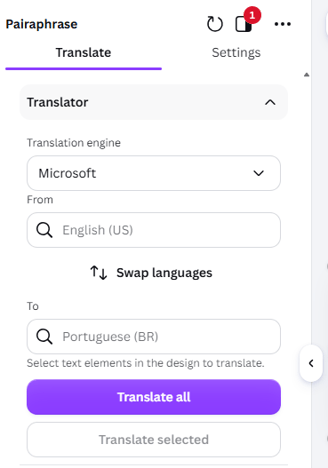
1. Open the Translate tab.
2. Choose a translation engine.
3. Select the source and target languages.
4. Select the text you want to translate, or choose Translate all for the full design.
5. Click Translate selected or Translate all.
6. Review and edit the translation shown in the Pairaphrase panel.
7. Click Apply to design to replace the original Canva text with the approved translation.
The translation is not added to the design until you select Apply to design. After applying it, check the layout for spacing, line breaks and text fit.
Translate selected elements
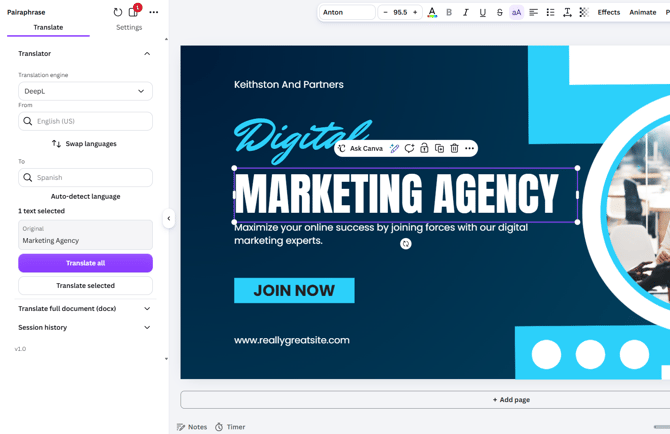
Use Translate selected when only part of the design needs translation. The option becomes available after you select one or more supported text elements in Canva.
Configure app settings
Open Settings to adjust text formatting and glossary syncing.
Reduce font size to fit
Enable Reduce font size to fit to automatically resize fonts when a translation does not fit your design. Review the result to make sure the text remains readable.
Mirror layout for right-to-left languages
Enable Mirror layout for right-to-left languages when using Translate all between a left-to-right and a right-to-left language, such as English and Arabic.
The app mirrors the whole page layout to follow the new reading direction while keeping text readable.
Sync glossaries with DeepL
Enable Sync glossaries with DeepL to sync your glossaries to DeepL. Syncing happens when you turn the option on and each time you add a new glossary entry.
Turn the option off to stop syncing. This setting does not apply to Translation Memories.
Review translations in the session history
Open the Session history to review the text elements translated during the current session. Depending on your connection method, available actions may include applying an approved translation to the design or saving it to Translation Memory.
Translation Memory and glossary controls differ by connection method. Existing Pairaphrase users work with resources assigned through Groups, while API-token users manage the available options directly in the Canva app.
Frequently asked questions
Do I need a Pairaphrase account to use the Canva integration?
You can sign in with an existing Pairaphrase account or connect the app using a Pairaphrase API key. New users can request an API token and receive 1,000 words of free translation before charges apply.
Does Canva translation use my Pairaphrase plan allowance?
Yes. When you sign in with an existing Pairaphrase account, translated words are deducted from the allowance associated with that account.
Can I translate only part of a Canva design?
Yes. Select the required text elements in Canva and then choose Translate selected.
Can I choose the translation engine?
Yes. You can select from the translation engines made available through the Pairaphrase integration.
Does the integration preserve the Canva layout?
The integration keeps the design structure in place when translating elements directly in Canva. However, differences in word length can affect line breaks, text size and spacing. Always review the translated design.
What is the difference between Translate selected and Translate all?
Translate selected lets you review and edit a translation before selecting Apply to design.
Translate all translates all supported text and applies the results directly to the design. You can review translated segments in Session history.
Can I use Pairaphrase Translation Memory in Canva?
Yes. How Translation Memory works depends on how you connect the app:
- Existing Pairaphrase users: The Canva app uses the Translation Memories assigned to you through your Pairaphrase Groups. These resources are managed in Pairaphrase and do not appear as separate options inside the Canva app.
- API token users: Translation Memory options are available directly within the Canva app. You can also save reviewed translations from the session history for future reuse.
Why is Translate selected unavailable?
The option becomes available after you select a supported text element in the Canva design.
Can I translate into a right-to-left language?
Yes. Choose an available right-to-left target language, such as Arabic. When using Translate all, you can also enable Mirror layout for right-to-left languages in Settings to mirror the page layout. Review the translated design afterward.
Should I review the design after translating it?
Yes. Translation can change the length and arrangement of text. Review every translated page for accuracy, readability, spacing and layout before publishing or sharing it.