
This guide is for users who access the Canva app with an API key. Existing Pairaphrase customers who sign in with their account use Translation Memories and glossaries assigned through Pairaphrase Groups. Read this guide if you’d like to use the Canva app with an active Pairaphrase subscription.
What you can do using the Canva App with an API key
After connecting, you can:
- Translate complete Canva designs or selected text elements
- Choose from the translation engines available in the app
- Upload and search Translation Memory files
- Upload, create and search glossary terms
- Reuse Translation Memory segments and glossary entries
- Review translated segments in the session history
Get access to the Canva integration
The Pairaphrase app is not currently listed in the Canva Marketplace.
To request access, visit:
https://www.pairaphrase.com/integrations/canva
After completing the sign-up form, you will receive instructions for accessing the app in Canva.
Request a Pairaphrase API key
New users can request an API key at:
https://www.pairaphrase.com/api
New users who connect through this method receive 1,000 words of translation at no charge before additional charges apply.
Connect the app with your API key
- Open the Pairaphrase app inside Canva.
- Open Settings and select Connect to Pairaphrase.
- Select Connect to open the Pairaphrase authorization window.
- Paste your Pairaphrase API key into the Paste your Pairaphrase API key field.
- Select CONTINUE WITH API KEY.
- Check the account shown on the consent screen, then select AUTHORIZE.
- Once you return to Canva, Settings should show that your account is connected.
To disconnect, open Settings and select Disconnect.
Translate a Canva design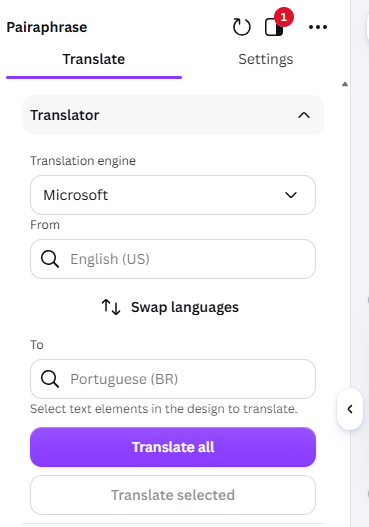
After connecting with your API key:
- Open the Translate tab.
- Choose a translation engine.
- Select the source and target languages.
- Choose Translate selected or Translate all.
Use Swap languages to reverse the selected language pair.
Translate selected text
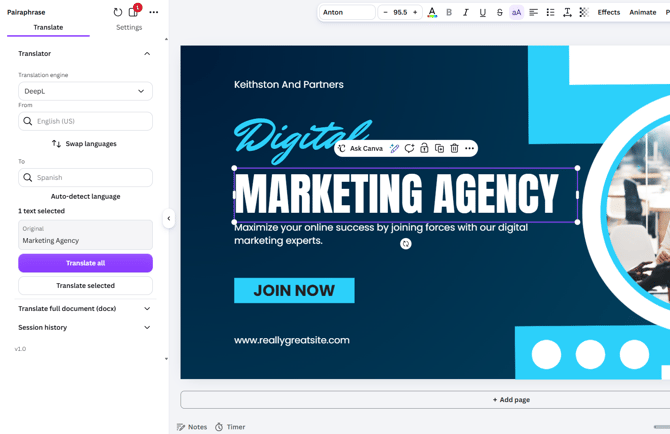
Use Translate selected when you only want to translate specific text elements.
- Select a supported text element in the Canva design.
- Select Translate selected.
- Review and edit the translation shown in the Pairaphrase panel.
- Select Apply to design.
The translation is not added to the design until you select Apply to design.
Translate the entire design
Select Translate all to translate all supported text elements in the design at once. The translations are applied directly to the Canva design. The translated segments then appear in Session history. Unlike Translate selected, this workflow does not include an editing step before the translations are applied. After translating, review the design for accuracy, spacing, line breaks and text fit.
Use Translation Memory in Canva
Expand Translation memories to upload, search and reuse previous translations.
Upload a Translation Memory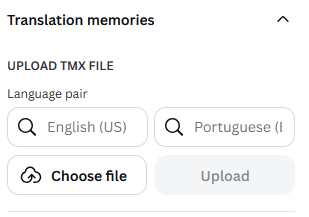
The Canva app accepts Translation Memory files in TMX format.
To upload a Translation Memory:
- Expand Translation memories.
- Select the source and target languages under Language pair.
- Select Choose file.
- Choose the TMX file from your device.
- Select Upload.
Make sure the selected language pair matches the content of the TMX file.
Search Translation Memory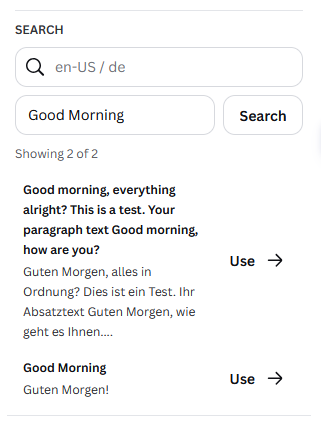
Use the search tools to locate previously translated segments.
- Select or confirm the language pair.
- Enter source text or keywords in the search field.
- Select Search.
- Review the matching source and target segments.
Select Use beside a result to reuse that translation in your current workflow.
Translation Memory is useful for content that appears repeatedly, such as approved messaging, instructions, product descriptions and organizational terminology.
Use glossaries in Canva
Expand Glossaries to upload terminology, create entries manually and search existing terms.
Upload a glossary
The Canva app accepts glossary files in CSV format.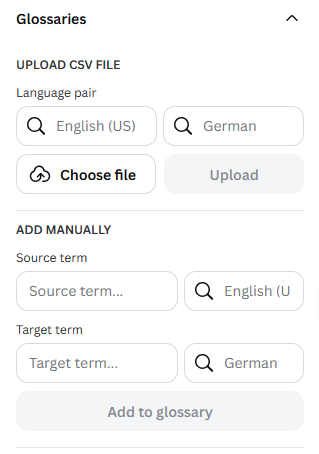
To upload a glossary:
- Expand Glossaries.
- Select the source and target languages under Language pair.
- Select Choose file.
- Choose the CSV glossary file from your device.
- Select Upload.
Confirm that the selected language pair matches the terms in the file.
Add a glossary term manually
You can also add individual terms without uploading a file.
- Enter the approved source term.
- Select its source language.
- Enter the preferred target term.
- Select its target language.
- Select Add to glossary.
Use this option when you need to add a small number of company names, technical terms or preferred translations.
Search glossary entries
To find an existing term: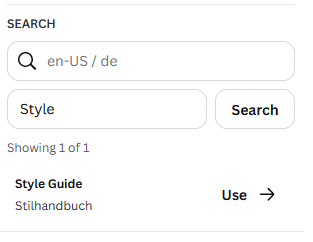
- Select or confirm the language pair.
- Enter a word or phrase in the search field.
- Select Search.
- Review the matching glossary entries.
Select Use beside an entry to apply the preferred terminology to your current translation workflow.
Review the session history
Expand Session history to view text translated during the current session.
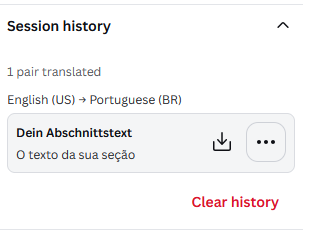
The session history allows you to:
- Review source and translated segments
- Return to previous translation results
- View segments created through Translate all
- Manage translated content from the current Canva session
Configure app settings
Open Settings to adjust text formatting and glossary syncing.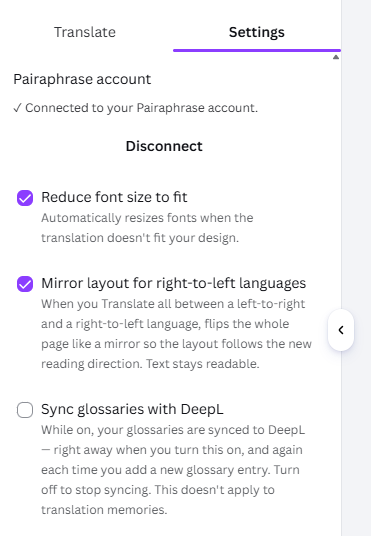
Reduce font size to fit
Enable Reduce font size to fit to automatically resize fonts when a translation does not fit your design. Review the translated text afterward to make sure it remains readable.
Mirror layout for right-to-left languages
Enable Mirror layout for right-to-left languages when using Translate all between a left-to-right and a right-to-left language, such as English and Arabic.
The app mirrors the whole page layout to follow the new reading direction while keeping text readable. Review the layout after translation.
Sync glossaries with DeepL
Enable Sync glossaries with DeepL to sync your glossaries to DeepL. Syncing happens when you turn the option on and each time you add a new glossary entry.
Turn the option off to stop syncing. This setting does not apply to Translation Memories.
Frequently asked questions
Do I need an existing Pairaphrase account?
No. You can use a Pairaphrase API key without an existing Pairaphrase subscription. Select Connect to Pairaphrase, then Connect, and enter your key on the Pairaphrase authorization page.
How many free words do new API-key users receive?
New users receive 1,000 words of translation at no charge before additional charges apply.
Can I use Translation Memory without a Pairaphrase account?
Yes. API-key users can upload TMX files, search stored segments and reuse translations directly inside the Canva app.
Which file format is required for Translation Memory?
Translation Memory files must be uploaded in TMX format.
Can I create and use glossaries in the Canva app?
Yes. API-key users can upload a CSV glossary, add terms manually, search glossary entries and reuse preferred translations.
Can I edit translations before adding them to Canva?
You can review and edit translations created with Translate selected before selecting Apply to design. Translate all applies translations directly to the design.
What is the difference between API-key access and signing in with a Pairaphrase account?
API-key users manage Translation Memory and glossary resources directly inside the Canva app.
Users who sign in with an existing Pairaphrase account use the Translation Memories and glossaries assigned to them through Pairaphrase Groups. Those users do not manage the resources from within the Canva app.
Why is Translate selected unavailable?
The option becomes available after you select a supported text element in the Canva design.
Can I remove or replace my API key?
Yes. Open Settings and select Disconnect.
To connect with another key, select Connect to Pairaphrase, then Connect. Enter the new key on the Pairaphrase authorization page, select CONTINUE WITH API KEY, and then AUTHORIZE.