
This guide is for existing Pairaphrase customers who want to connect their account to the Canva integration. For instructions on using the Canva app with an API token, refer to the separate API-token setup guide.
Before you begin
Make sure that:
- Your organization has an active Pairaphrase plan.
- You have valid Pairaphrase login credentials.
- Your Pairaphrase administrator has assigned you to the appropriate Groups.
- The Translation Memories and glossaries you need are available to those Groups.
- You have received access to the Pairaphrase Canva app.
- You are logged in to your Pairaphrase account on your device.
The app is currently available through an early-access program and is not yet listed in the Canva Marketplace. Access can be requested at:
https://www.pairaphrase.com/integrations/canva
Sign in to Pairaphrase from Canva
- Open the Canva design you want to translate.
- Launch the Pairaphrase app and open Settings.
- Select Connect to Pairaphrase, then Connect.
- In the authorization window, select SIGN IN WITH YOUR PAIRAPHRASE ACCOUNT.
- Sign in using your Pairaphrase credentials or single sign-on. If you are already signed in, you may go directly to the authorization screen.
- Confirm the correct account is shown, then select AUTHORIZE.
- Once you return to Canva, Settings should show that your Pairaphrase account is connected.
Once connected, translations completed through Canva are deducted from the word allowance included with your existing Pairaphrase plan.
How Translation Memory and glossaries work
When you sign in with an existing Pairaphrase account, the Canva app connects to the Translation Memories and glossaries assigned to you through Pairaphrase Groups.
You will not see separate Translation Memory or glossary selection controls inside the Canva app. The resources available to you are determined by your Group assignments in Pairaphrase.
This means:
- Translation Memories and glossaries are managed in Pairaphrase.
- Access is controlled through Pairaphrase Groups.
- The Canva app automatically uses the resources available to your account.
- Different users may have access to different resources based on their Group assignments.
What are Pairaphrase Groups?
Groups allow organizations to control which users can access specific translation resources.
A Group may be configured for a particular:
- Department
- School or district
- Team
- Project
- Content type
- Language workflow
Your Group membership determines which Translation Memories and glossaries are available when you translate through Canva. For more information, read: How to create groups in Pairaphrase.
What to do if the expected resources are unavailable
If a Translation Memory or glossary does not appear to be applied:
- Confirm that you signed in with the correct Pairaphrase account.
- Check that your account has been assigned to the appropriate Group.
- Confirm that the required Translation Memory or glossary is assigned to that Group.
- Ask your Pairaphrase administrator to review your Group permissions.
- Open Settings, select Disconnect, and reconnect after your permissions have been updated.
Because these resources are managed through Pairaphrase, they cannot be added or changed directly from the Canva app.
Translate a Canva design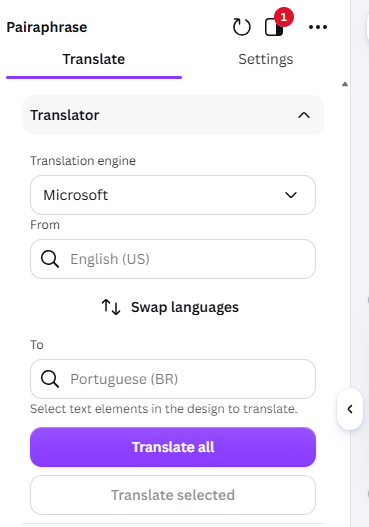
After signing in:
- Open the Translate tab.
- Choose a translation engine.
- Select the source and target languages.
- Choose Translate selected or Translate all.
With Translate selected, you can review and edit the translation before selecting Apply to design.
With Translate all, all supported text elements are translated and applied to the design automatically. The translated segments then appear in Session history.
After translating, review the design for accuracy, spacing, line breaks and text fit.
Translate selected elements
Use Translate selected when you only want to translate specific text elements.
- Select one or more supported text elements in Canva.
- Choose Translate selected.
- Review and edit the translation in the Pairaphrase panel.
- Select Apply to design to replace the original text.
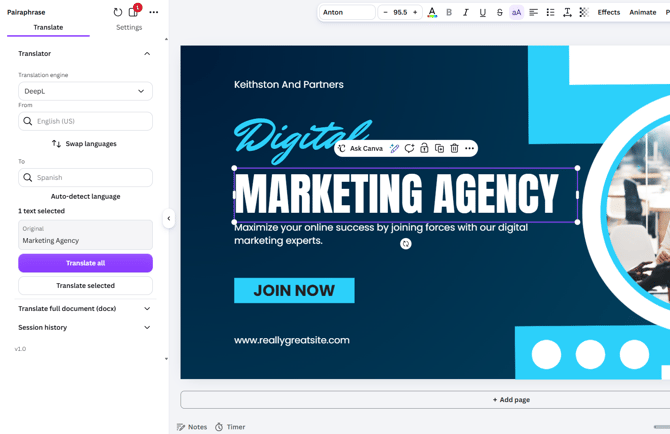
The translation is only added to the design after you select Apply to design.
Translate the entire design
Choose Translate all to translate all supported text elements in the design at once.
The translations are applied directly to the Canva design. Individual segments are then listed in Session history for reference.
Use full-document translation
For larger or more text-heavy designs, use Translate full document (docx).
This option exports the design content and translates it into a Microsoft Word DOCX file. It does not replace the text directly inside the Canva design.
Use this workflow when reviewing or working with the translated content as a document is more practical than translating individual Canva elements.
Configure translated text
The Settings tab includes options for managing how translated content appears.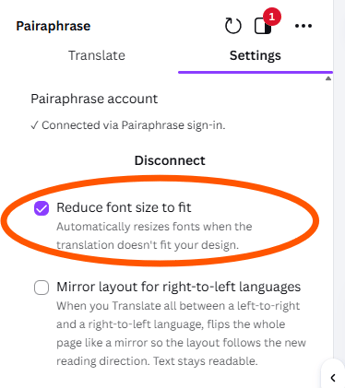
Reduce font size to fit
Enable Reduce font size to fit when translated text may be longer than the original.
The app reduces the font size when necessary to help the translation remain within the existing text element. Review the result to make sure the text remains readable.
Mirror layouts for right-to-left languages
Enable Mirror layout for right-to-left languages when translating between left-to-right and right-to-left languages.
This adjusts the design direction to better match the target language.
Sync glossaries with DeepL
Enable Sync glossaries with DeepL to sync your glossaries to DeepL. Syncing happens when you turn the option on and each time you add a new glossary entry.
Turn the option off to stop syncing. This setting does not apply to Translation Memories.
Review session history
The Session history section displays translations created during the current Canva session.
You can use it to: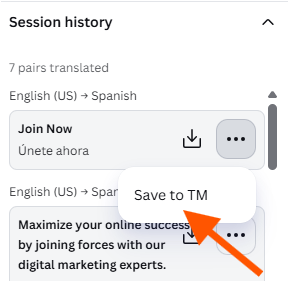
- Review source and translated text
- Return to previously translated elements
- Apply approved translations to the design
- Save reviewed translations to Translation Memory
Translations saved to Translation Memory become part of the Pairaphrase resources available for future reuse, subject to your account permissions and Group configuration.
Disconnect or reconnect your account
- Open Settings.
- Select Disconnect.
To reconnect, select Connect to Pairaphrase and complete the authorization flow again. Check the account shown on the consent screen before selecting AUTHORIZE.
Frequently asked questions
Does Canva translation use my Pairaphrase plan allowance?
Yes. Words translated through Canva are deducted from the allowance associated with your Pairaphrase plan.
Can I choose a Translation Memory inside the Canva app?
No. When you sign in with an existing Pairaphrase account, the app uses the Translation Memories assigned to you through Pairaphrase Groups. These resources are managed in Pairaphrase rather than selected inside Canva.
Can I choose a glossary inside the Canva app?
No. Glossary access is determined by your Pairaphrase Group assignments.
Why are my usual Translation Memories or glossaries not being used?
Your Canva connection may be using an account without access to the correct Group, or the resources may not be assigned to your Group. Contact your Pairaphrase administrator to review your permissions.
Can different users have access to different translation resources?
Yes. Organizations can use Groups to provide different users, teams or departments with access to different Translation Memories and glossaries.
Can I edit a translation before applying it to Canva?
Yes, when using Translate selected. Review or edit the result, then select Apply to design.
Translate all applies translations directly to the design without a separate review step. Review the design afterward.
Can I connect using an API key instead?
Yes. Select Connect to Pairaphrase, then Connect. On the Pairaphrase authorization page, enter your API key and select CONTINUE WITH API KEY, then AUTHORIZE.
API-key access provides a different Translation Memory and glossary workflow. See our API-token setup guide for details.
Who should I contact if I cannot sign in?
Confirm that your Pairaphrase credentials are correct and that your account is active. If the issue continues, contact your Pairaphrase administrator or the Pairaphrase support team.