
The Pairaphrase AI Sandbox lets you translate text within images — such as flyers, banners, screenshots, and marketing materials — using Google's Gemini model with native image generation.
Before you begin
- Make sure you are using the Gemini model — it is optimized for image translation.
- To check or change your model, click the ⚙️ Settings icon in the top-left corner of the Sandbox and select Gemini.
- Have your image file ready to upload. Supported formats: PNG, JPEG.
Step-by-Step: Translate an image
Step 1 — Open the Sandbox and select the Pre-Made Prompt
From the Sandbox home screen, click the "Translate an image" button.
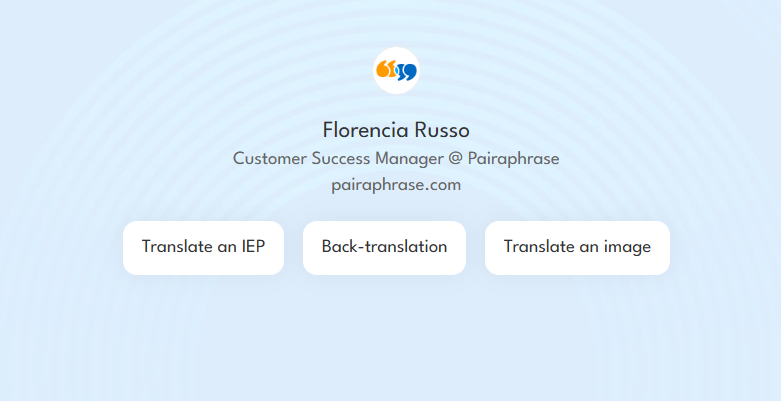
The AI will prompt you to provide two things:
- Your image file — the PNG or JPEG you want translated
- Target language — the language you want the text translated into
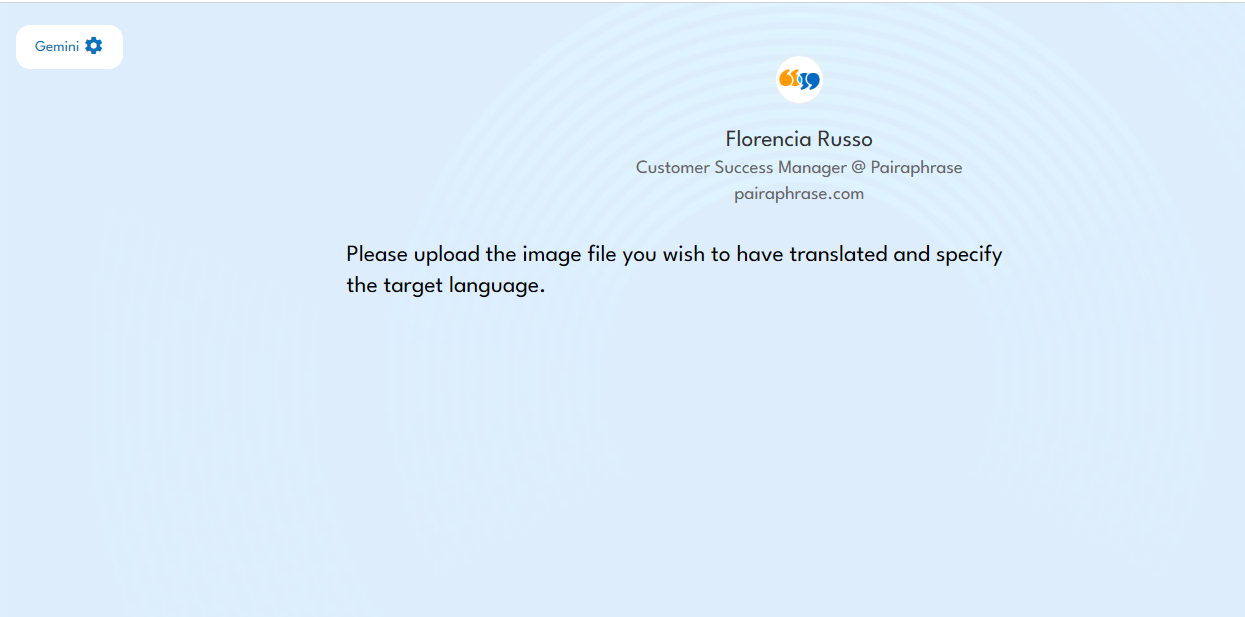
Step 2 — Upload your image and specify the target language
Upload your image and include the target language in your message. For example:
"Please translate this image to English."
Then send the message.
Step 3 — Receive the translated image
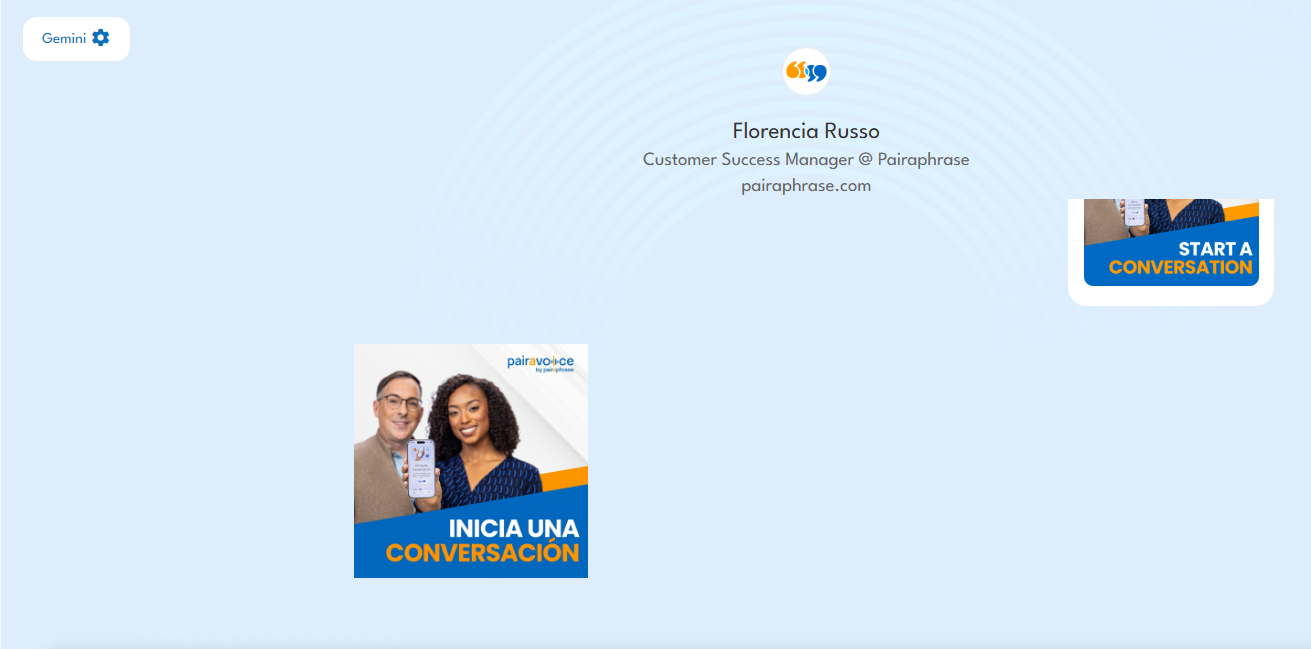
The AI will process the image and return a translated version with the text rendered in your target language, preserving the original visual layout as much as possible. Right-click on the image and Save Image as to download it.
Example
An English-language flyer reading "START A CONVERSATION" would be returned as a Spanish version reading "INICIA UNA CONVERSACIÓN", with the same design and layout intact.
Tips
- Image translation works best on images where the text is clear and legible.
- For best results, use high-resolution PNG or JPEG files.
- Image translation does not produce a downloadable DOCX — the output is the translated image itself.
Need Help?
If you’d like tips on writing better prompts or using the Sandbox for specific projects, contact us here.