
During translation, text can sometimes be divided into multiple segments because of formatting, layout rules, or how the source file was structured. When those splits disrupt the natural flow of a sentence or paragraph, the Merge with segment below feature lets you fix it instantly—right in the Editor.
When to use segment merging
This feature is best used when you need to improve readability without changing meaning.
Common use cases include:
-
Sentences split across multiple segments
-
Paragraphs that feel choppy or incomplete
-
Formatting-related breaks caused by PDFs, IDML, or converted files
How to merge adjacent segments
Follow these steps to merge two segments:
-
Open your translated file in the Translation Editor
-
Locate the two segments you want to combine
-
Click the three-dot menu on the upper segment
-
Select Merge broken segment below
-
Review the merged text and make any final edits if needed
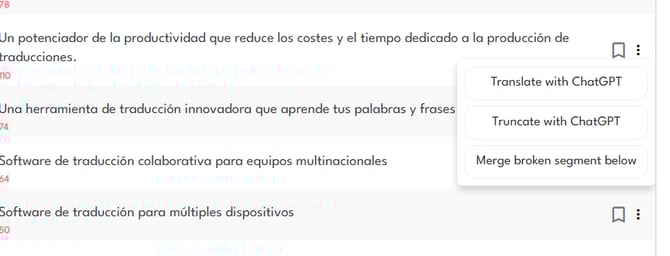
Once merged, the text appears as a single segment, making it easier to review and edit as a complete sentence or paragraph.
Why merging segments matters
Merging adjacent segments helps you:
-
Restore natural sentence flow
-
Improve readability for reviewers and end users
-
Reduce awkward breaks caused by file formatting
-
Maintain sentence integrity during post-editing
This is especially useful for design-heavy files or converted formats where segmentation doesn’t always match how the text should read.
Need help or want to learn more?
If you have questions about segment merging or want help optimizing your post-editing workflow in Pairaphrase, contact us, and our team will be happy to assist.